

Install MPC – Android

- Open the Chrome browser
Pixel 7, 7 Pro, or 6a?

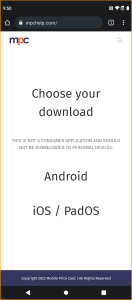
Go to mpchelp.com/[your URL]
Your URL has been distributed to you by your company
Touch Android
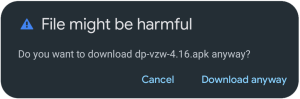
A prompt appears. Tap “Download Anyway” to start download
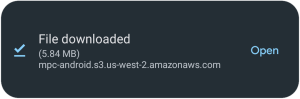
- Select “Open” once downloaded. If you dismiss the popup, you can open it from the notification shade.
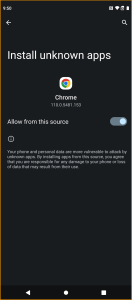
- Click “Settings” to allow installations from unknown sources
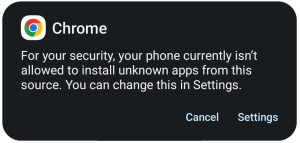
- Allow it
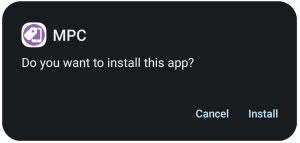
Touch “install”, and open once complete.
If your device is running Android 10 or less, you will have to press back to return to the installer. From there, complete the install and open MPC.
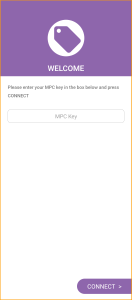
You may need to enter an MPC Key depending on your app version. Your company will provide it.
If you don’t see a box for the key, just tap “Next”
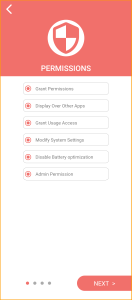
Next you’ll be tasked with granting many permissions. The app will guide you through. You will not be able to proceed unless all permissions are granted.
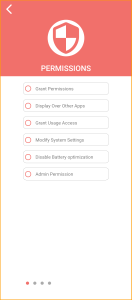
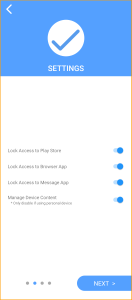
Leave these checked unless you have received different instruction.
Click “Next” to move on
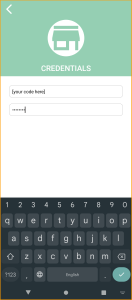
Sign in using your credentials.
Tap “Next”
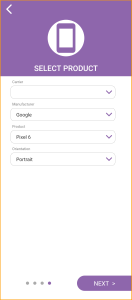
Verify the device selected is correct. Make changes if needed
If installing on a tablet, change orientation to horizontal.
Tap Next
MPC will start doing its thing: scrolling through Pricing, Ads, Specs, Ads and so on. Interact with it to get a feel for how it works!